Scheduling with Sling
As we have outgrown our Excel-based scheduling system, after a couple trials, we decided to use the Sling scheduling system. Sling comes with both a web-based app that you can use from any modern web browser, as well as both iOS and Android mobile apps.
By using either the desktop or mobile app, you'll be able to perform common scheduling-related tasks, such as:
- Viewing just your own schedule
- Viewing the full schedule
- Viewing and applying for open shifts
- Customizing your alerts and notifications
- Viewing announcements
- and, in the future, some other stuff like shift trades, vacation booking, etc.
While the Sling apps are fairly intuitive, we'll try to provide some brief documentation on the various functions that we'll use.
Jump to section:
Intro Video
Initial Setup
It is highly recommended that you perform your initial setup via the web app (the website), not the phone/mobile app. Not all of the options are always made available via the mobile app. For day-to-day use, the mobile app will likely be more convenient.
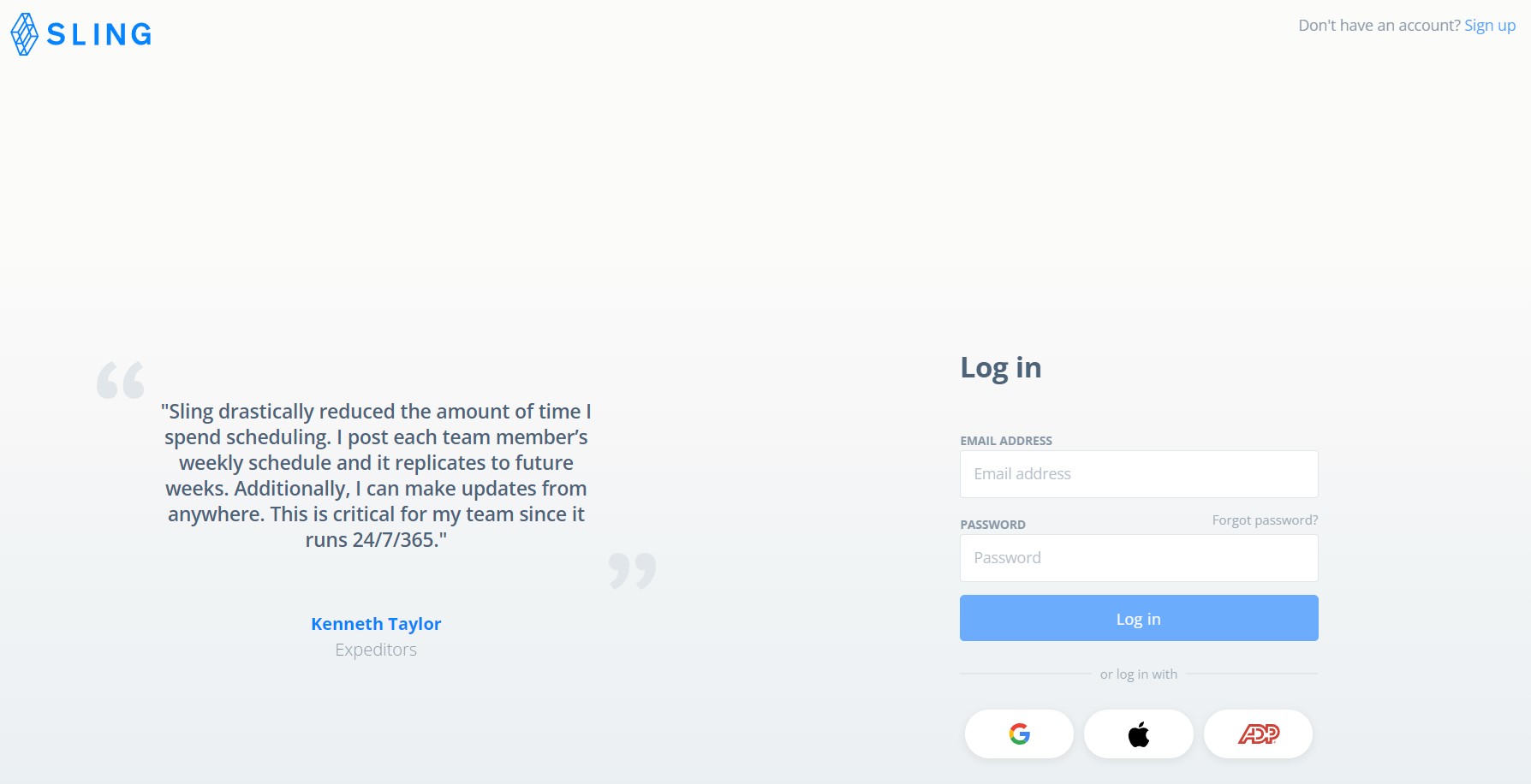
- Sign into Sling using the website at https://app.getsling.com.
Log in using the EMAIL ADDRESS/PASSWORD boxes. Do not use the OAuth options below (the Google, Apple and
ADP buttons).
-
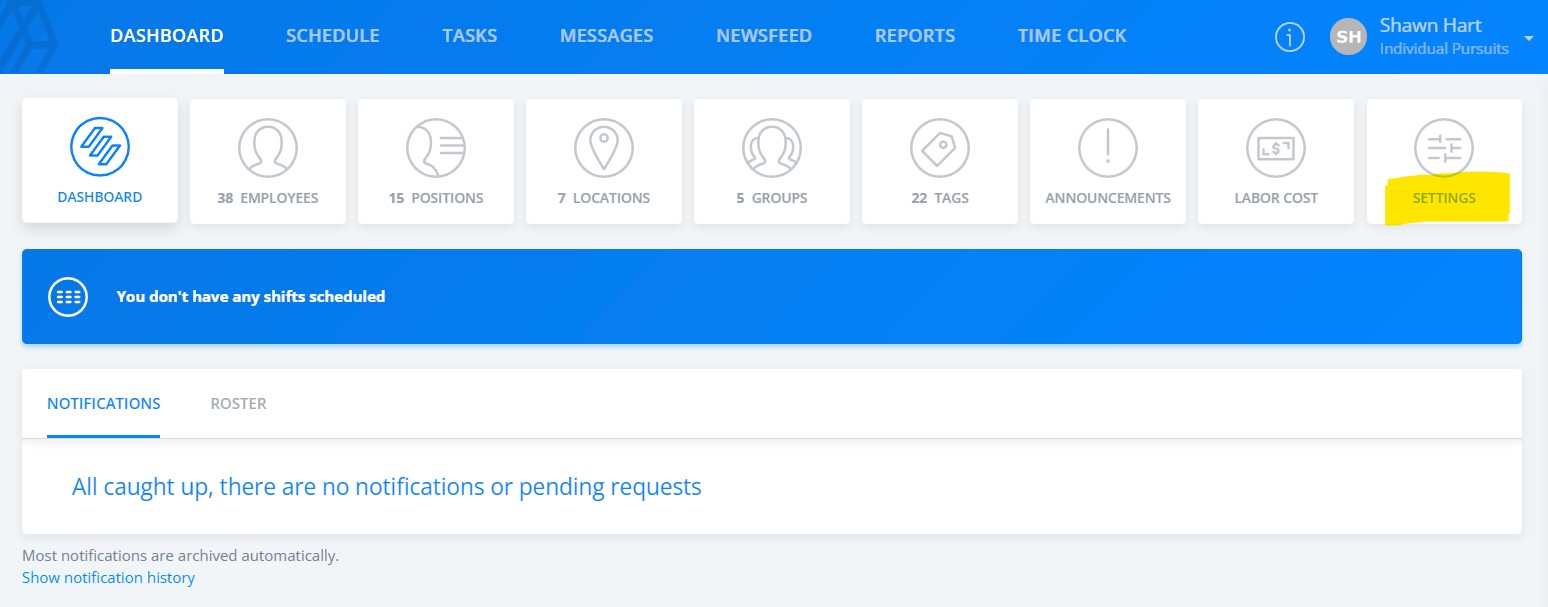
Once logged in, you will see the Dashboard screen, which contains a number of buttons and menu options at the top with the notifications section underneath. Select Settings.
Note: you may have different options on your screen
.
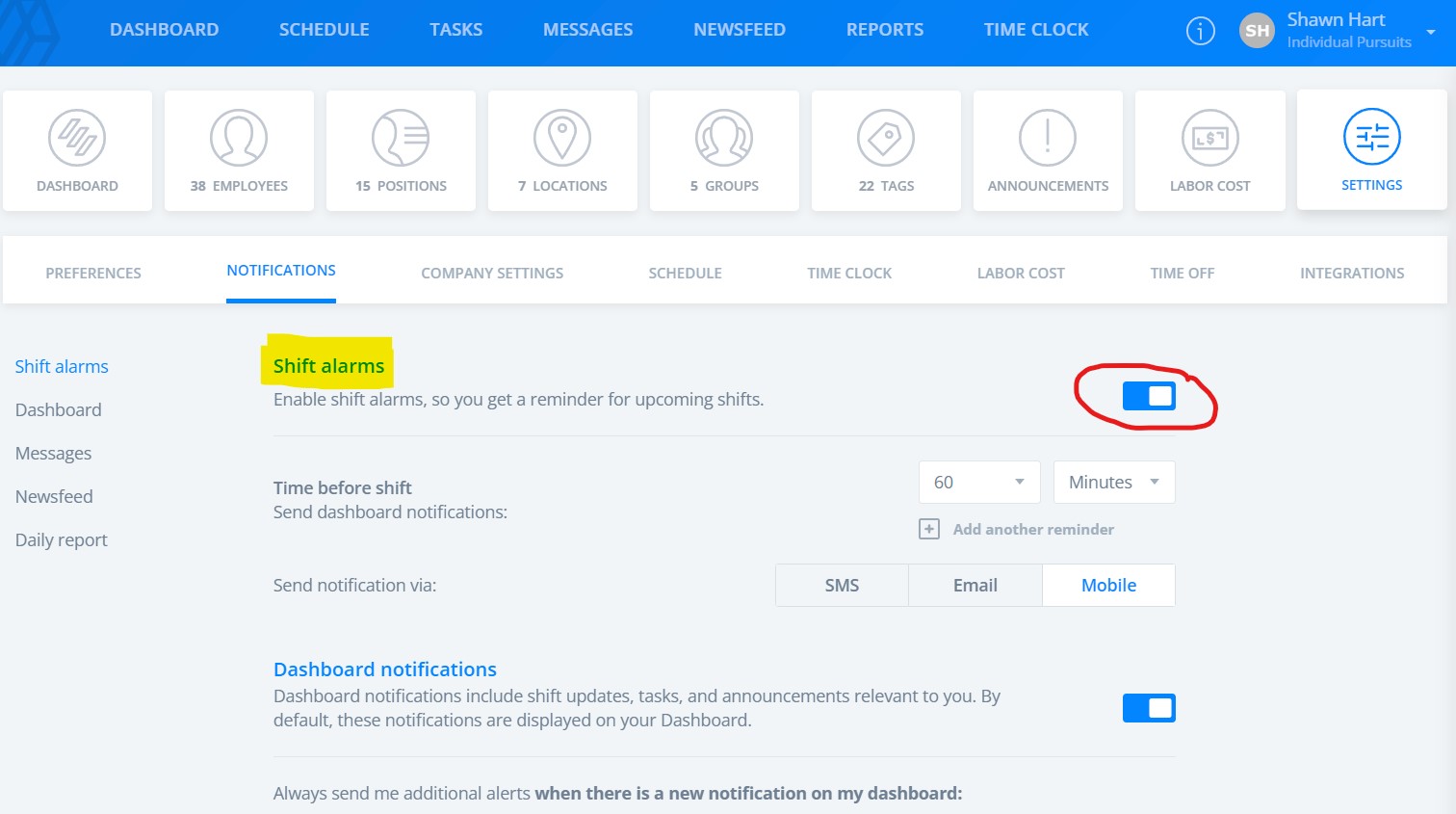
- From your Settings page, select Notifications and use
the radio buttons to turn
on/off Shift alarms. This gives you a warning of an upcoming shift. It is optional; use
it if you would find it helpful or keep
it off if you don't want shift reminders.
-
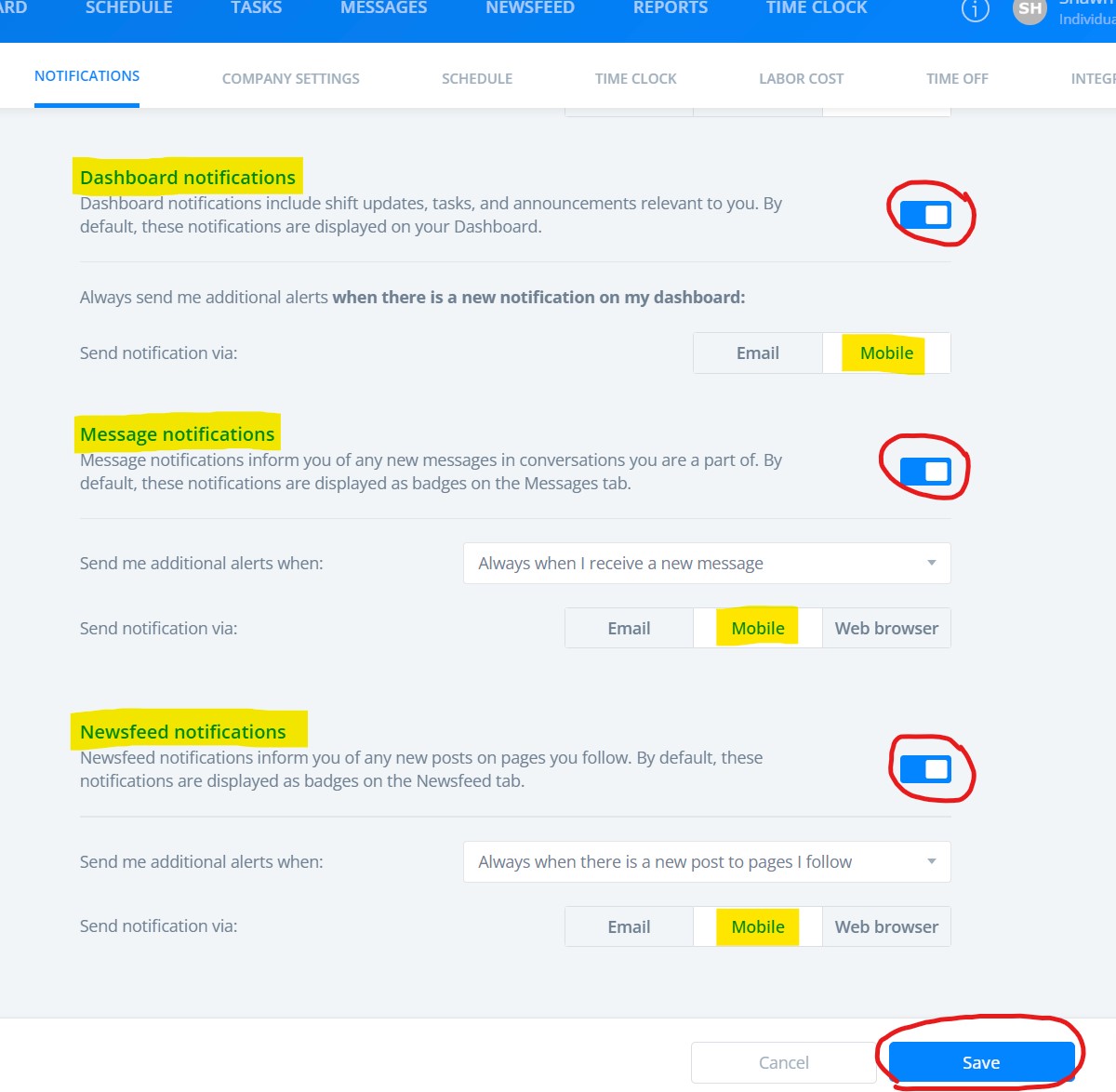
On the same Notifications tab, ensure Dashboard Notifications, Message Notifications and Newsfeed Notifications are tured on, as these types of notifications are often time-sensitive. The Send notification via: option for each should be set to Mobile, which means it will notify you of new messages via the phone app. These are important settings, they will allow you to see things like shift call outs, shift approvals/confirmations, up to date changes to the schedule, and other announcements as well.
Make sure to hit Save before leaving the panel to save your changes.
- All done. Remember, if you want to change any of these settings in the future, simply return to this page in the app.
Basic Navigation
With the wither the mobile or web version of the Sling app, you can view your shifts, view the entire schedule and view any announcements that you have been selected to receive.
Viewing the schedule
-
In the web app:
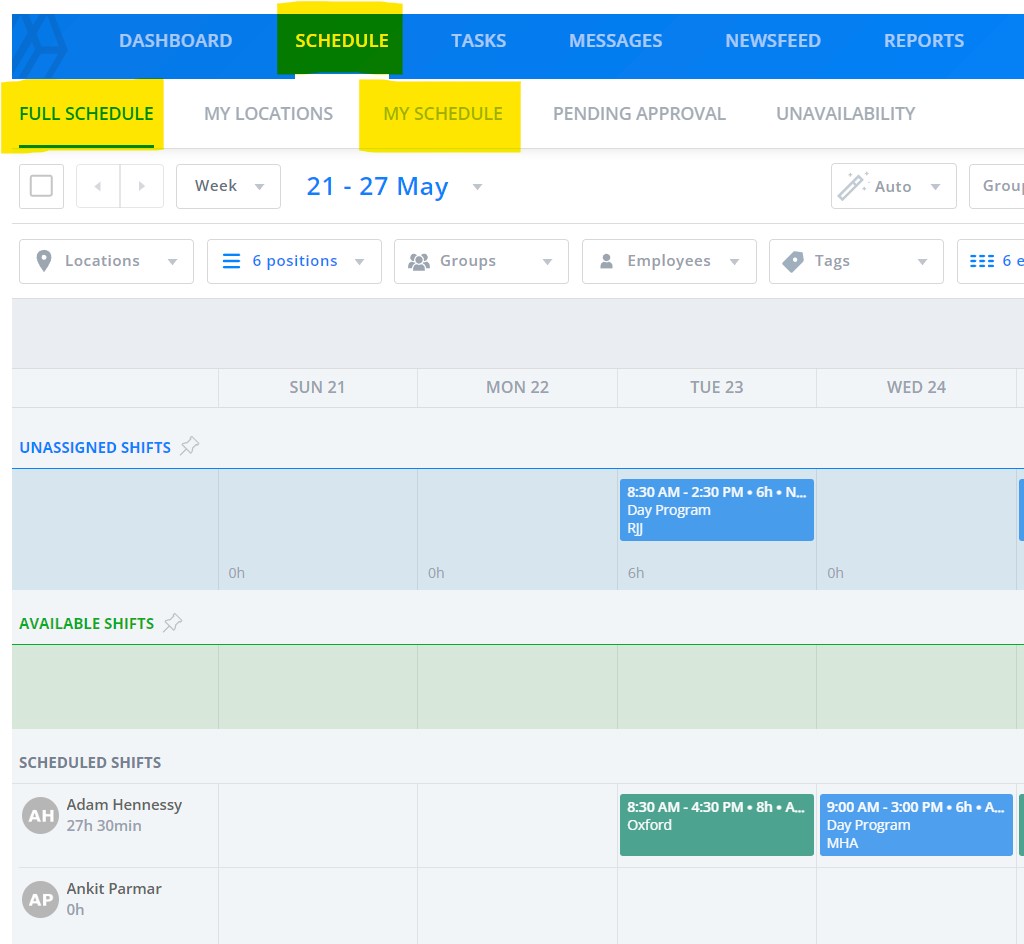
On the top menu bar, select SCHEDULE. From there you can select either MY SCHEDULE, to view just your own shifts or FULL SCHEDULE, to see the full schedule with everyone's shifts.
-
In the mobile app:
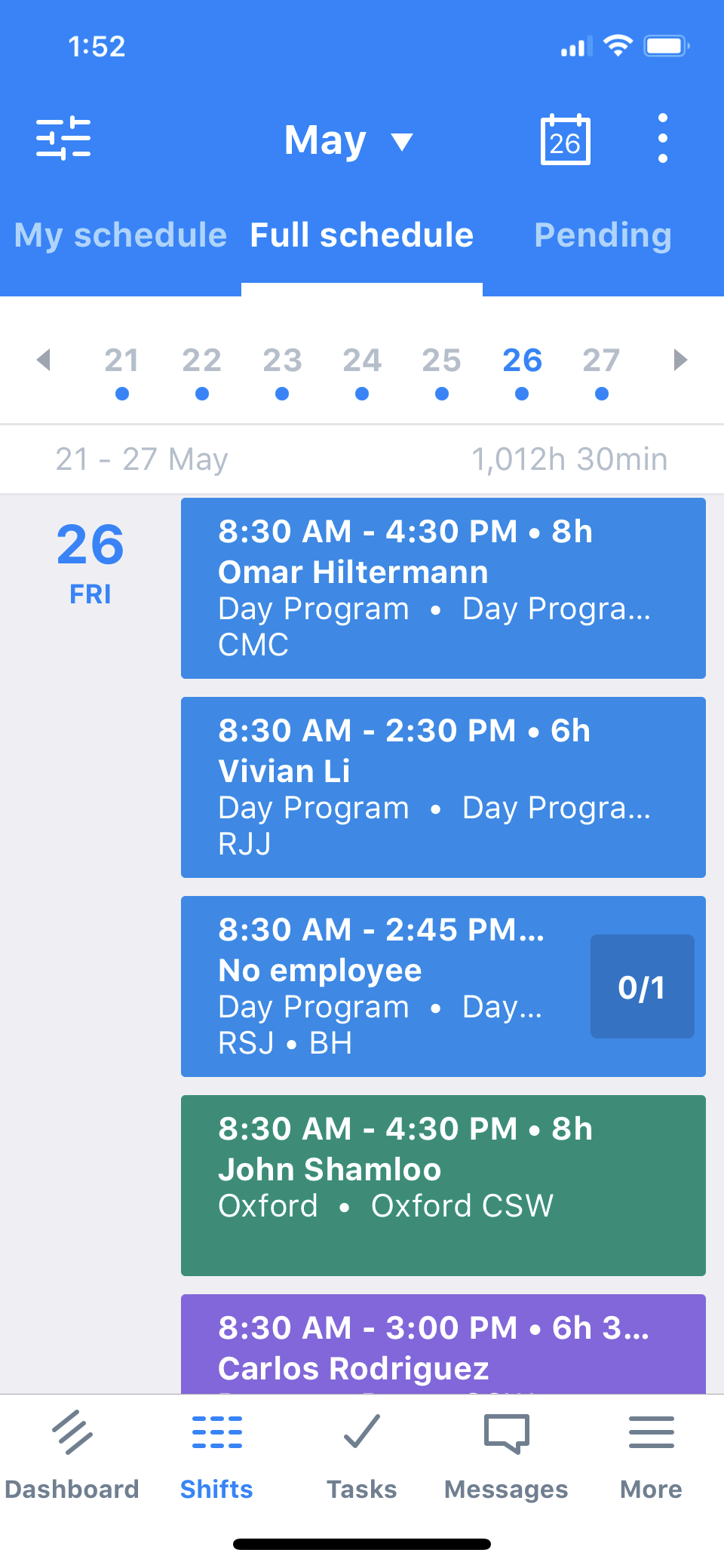
On the bottom menu bar, select Shifts. From there you can select either My Schedule, to view just your own shifts or Full Schedule, to see the full schedule with everyone's shifts, in the top menu bar.
Viewing announcements
Notifications of new announcements can be viewed directly on the Dashboard or on the Announcements page.
-
In the web app:
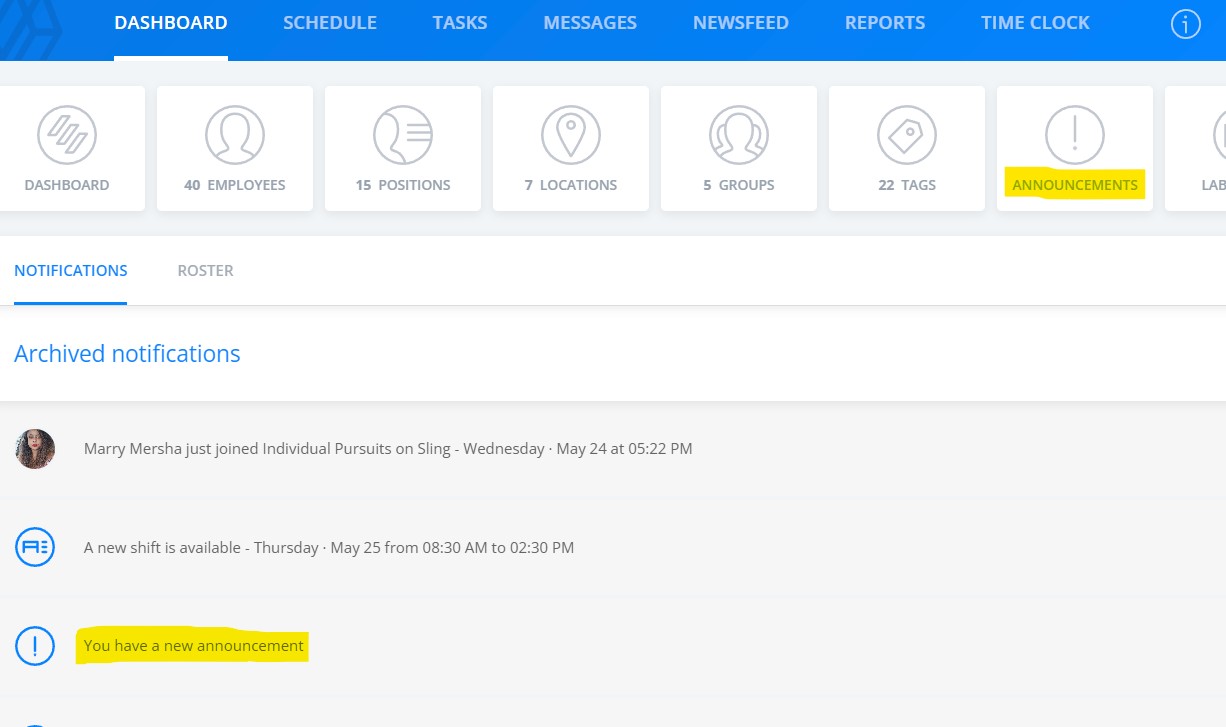
Announcements will be added to the Notifications section of the Dashboard; clicking on the notification will show the announcement in a pop-up window. Alternatively, you can view all announcements sent to you by clicking on the ANNOUNCEMENTS button at the top of the screen.
-
In the mobile app:
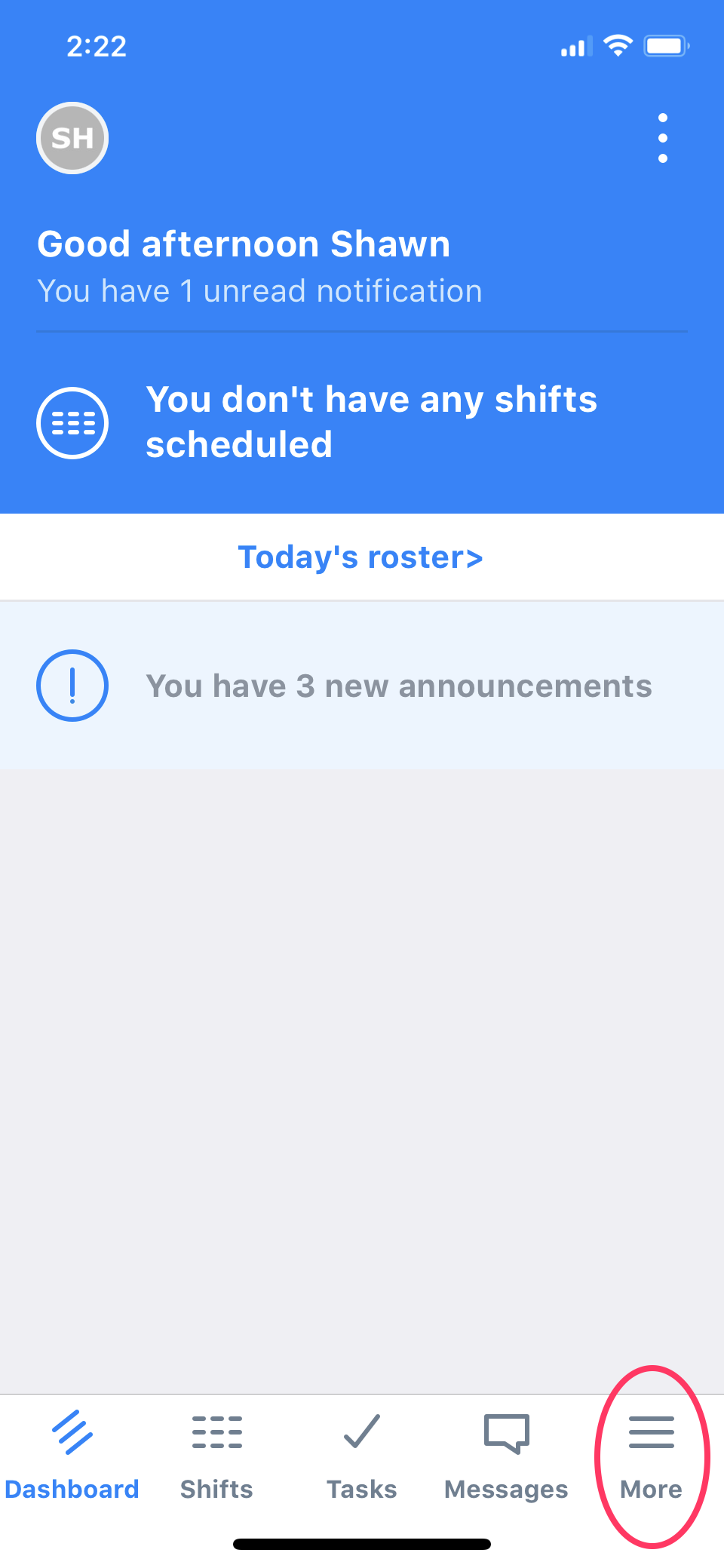
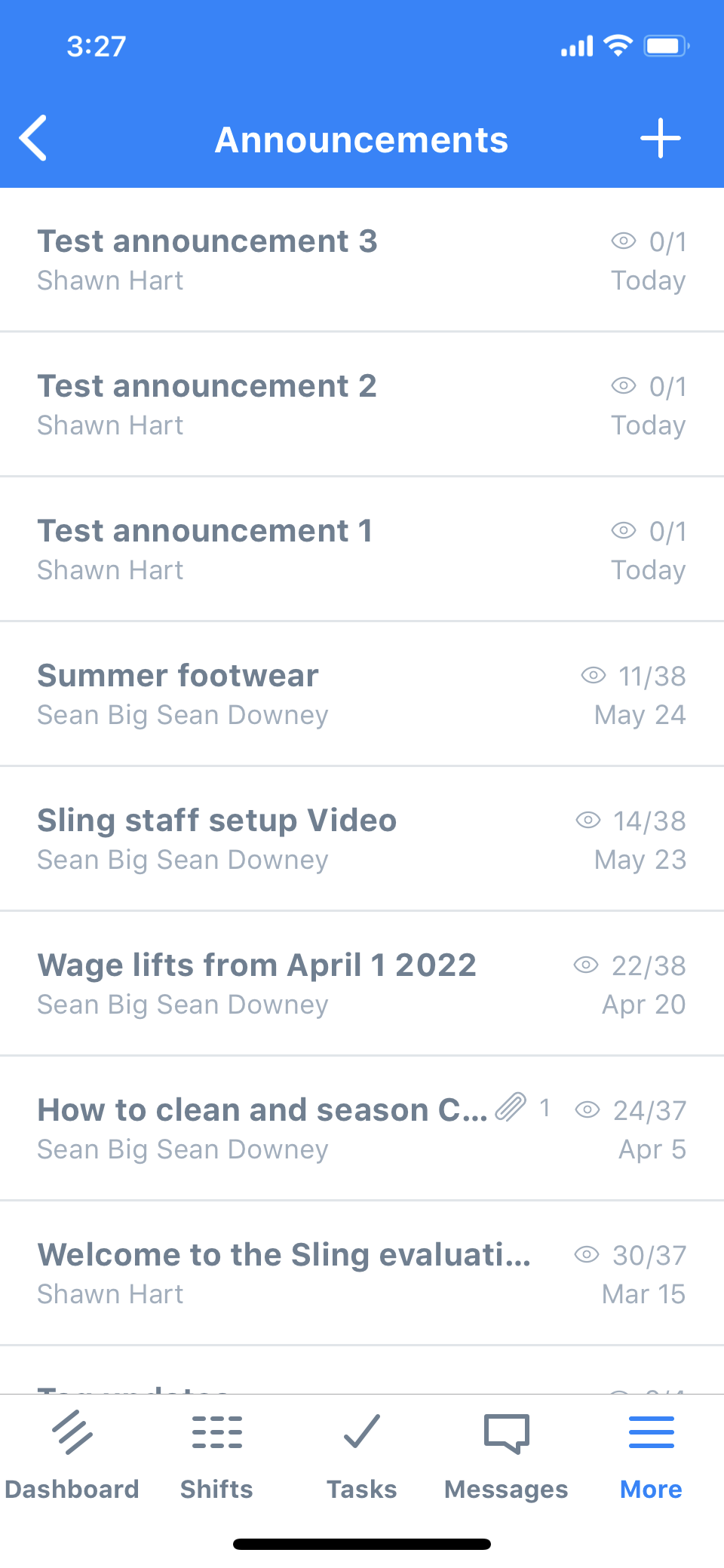
Like on the web app, notifications of any new announcements will be shown in the NOTIFICATIONS section of the DASHBOARD. Like the web app, touching the notification of the announcement will show it in a full screen view, or the first announcement if the notifications refer to more than one.
To go to the actual Announcements page, so you can view all the announcements you've been sent, touch the More icon and select ANNOUNCEMENTS from the menu that appears. You will be taken to the Announcements page.
Applying for open shifts
You will receive a notification of a new avaiable shift on your Notifications panel of your Dashboard as soon as it is posted. Standard response times, as outlined in our Local Issues Agreement, will be applied. Please use the Sling app from this point on when applying for open shifts, the old callout procedure will be retired. Anyone attempting to apply for a shift via text message will be directed to use the Sling app instead.
-
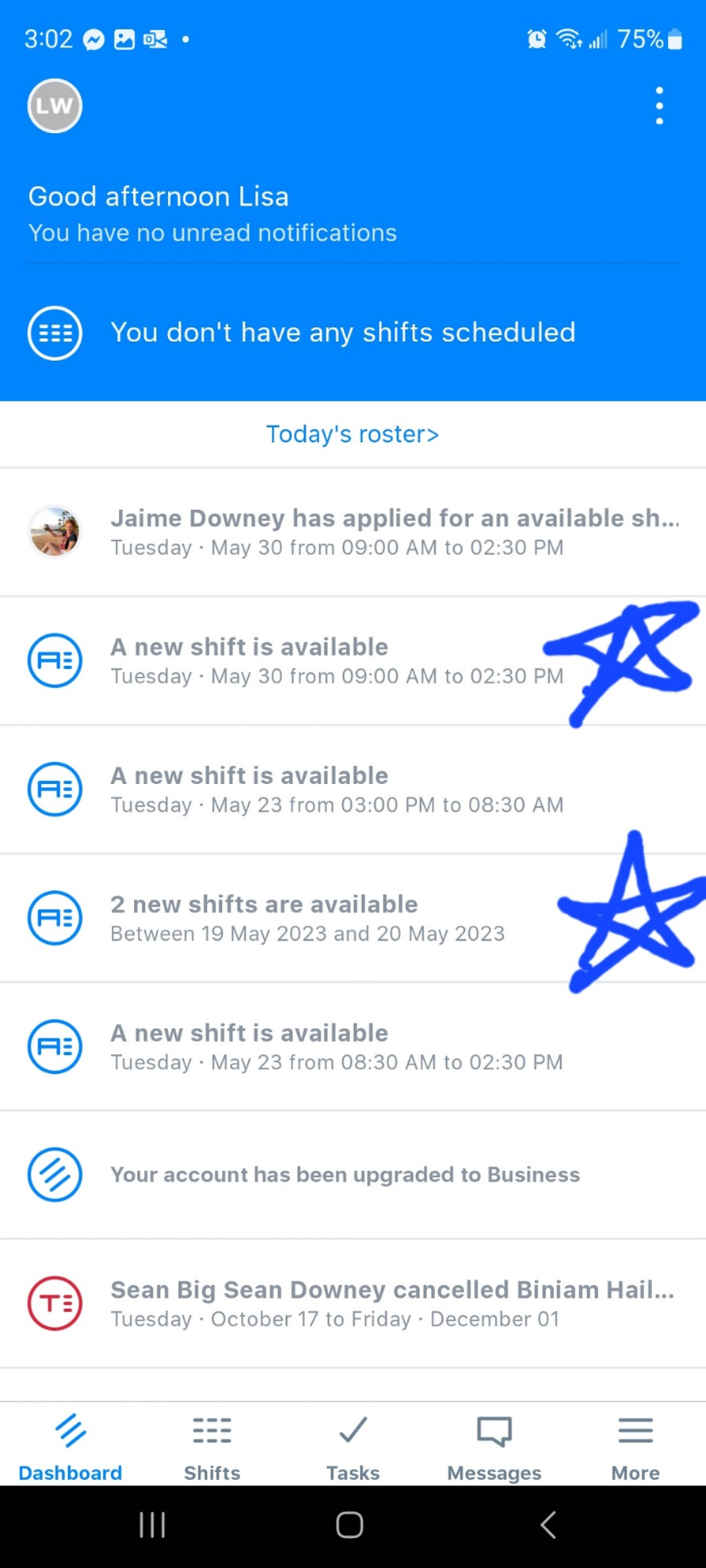
You'll be notified of available shifts in the notifications section of the dashboard. Note that a
notification may contain
information about more than one shift:
-
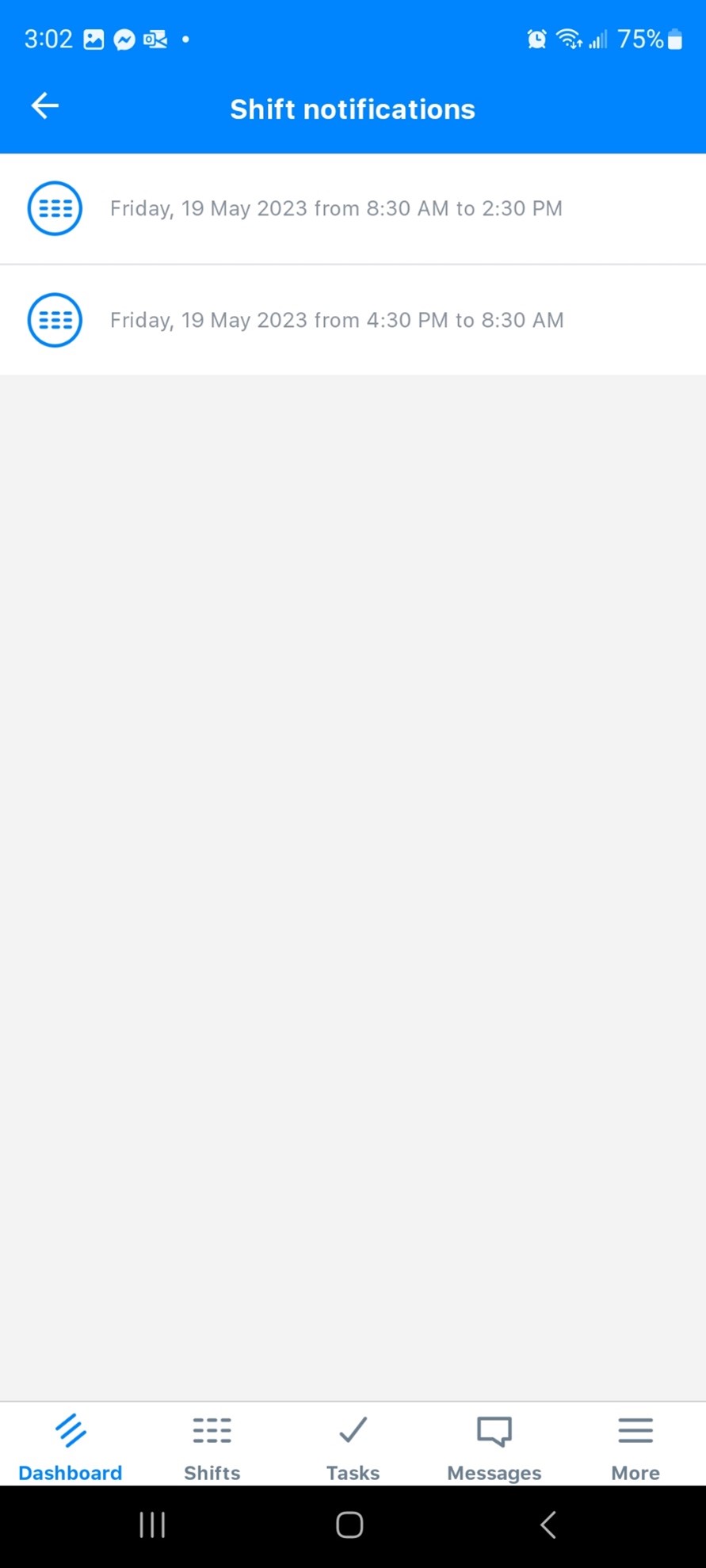
Selecting the notification will bring you to the shift or a list of shifts. Shifts have to be applied for one at a time. Select one of the shifts you are interested in to see the shift details:
-
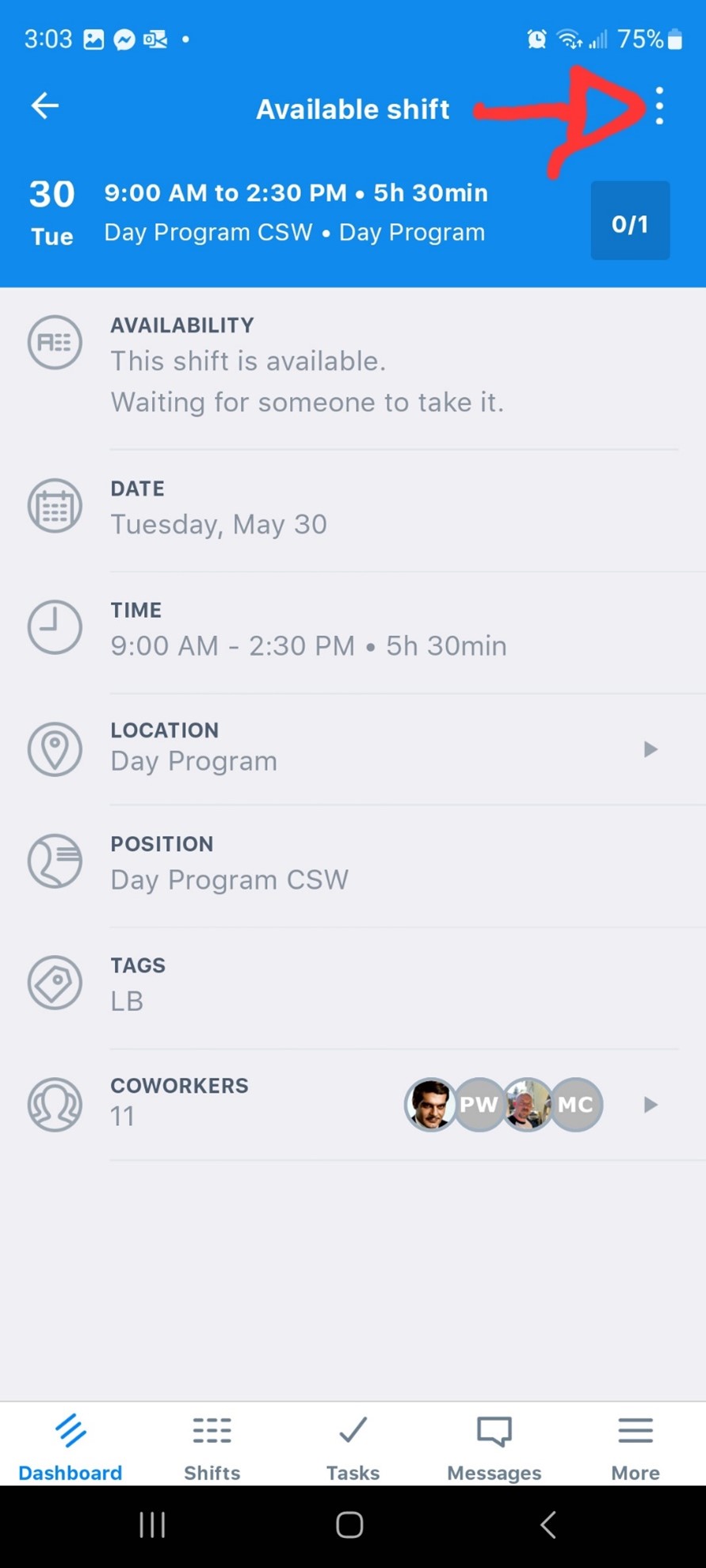
On the shift detail page, select the ellipsis (three dots) at the top right to show a menu where you can apply for the shift.
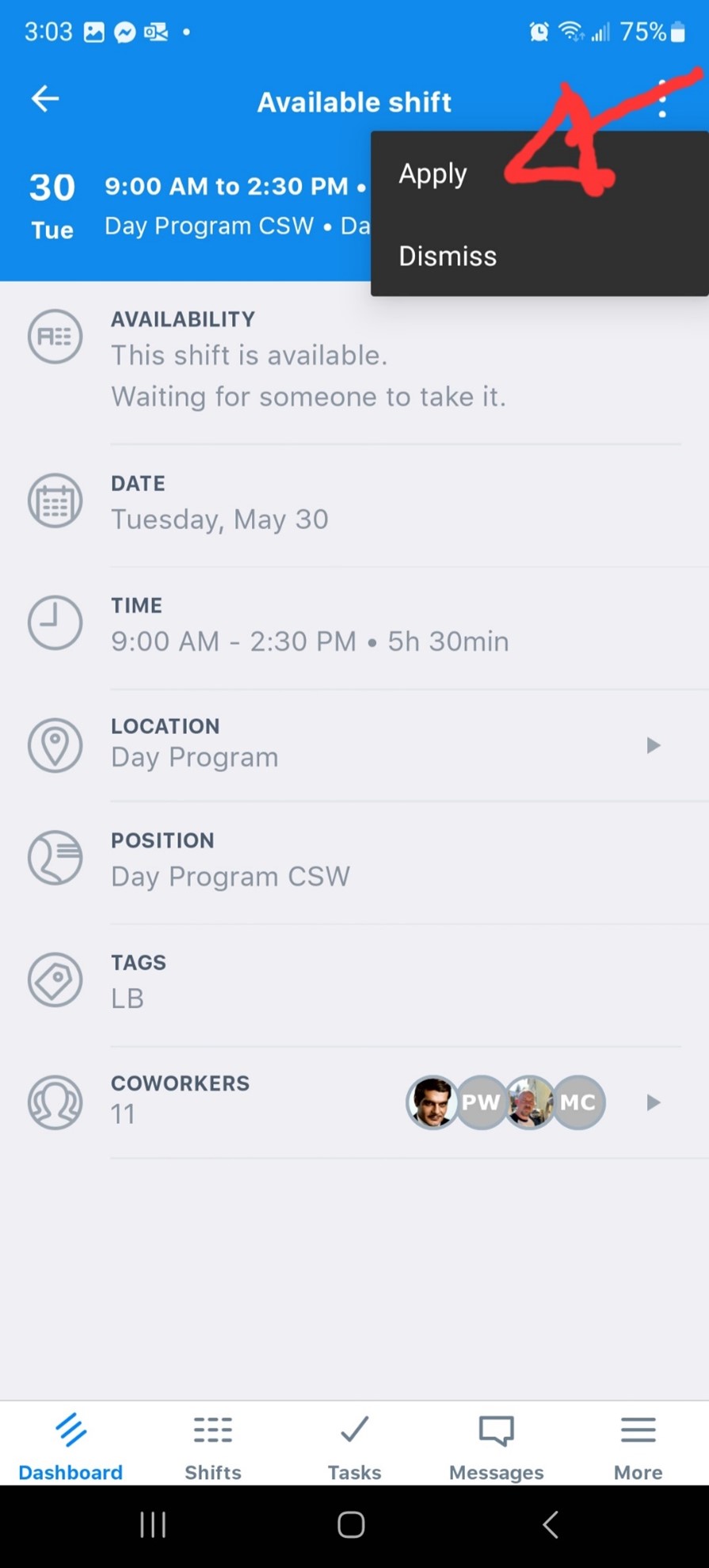
-
Your shift application is now pending. If you are given the shift you will receive a notification in your dashboard. If someone else gets the shift it should show as no longer available.